Migrate your classic storage account to Azure Resource Manager using PowerShell Azure v5.0.x

I've been working to convert a lot of classic resources on Azure lately, a lot of fun I assure you! Many of the scenarios I faced implied virtual machines & virtual networks but here I will present a simple case I did recently, migration of a simple Classic storage used for blobs, tables & queues.
If you want to migrate one or many classic storage accounts that are used for everything else than hosting VHDs and images, this is the recipe for you.
What you'll need is Azure & AzureRM PowerShell modules installed, I used version 5.0.0 for this article, to install them you can type the following in a PowerShell (administrator) console:
Install-Module -Name AzureRm -RequiredVersion 5.0
Install-Module -Name Azure -RequiredVersion 5.0
Note: you need to make sure you don't have VM images and disks as Azure Resource Manager storage accounts don't support Classic images & disks.
First thing first, you'll need to login into your account and select the right subscription.
Add-AzureAccount # enter your credentials
Select-AzureSubscription -SubscriptionId 00000000-0000-0000-0000-000000000000 # replace with yours
In order to use any migration cmdlets, you need to register the Microsoft.ClassicInfrastructureMigrate resource provider using this command (make sure you have the privileged permissions on the Azure subscription):
Register-AzureRmResourceProvider -ProviderNamespace Microsoft.ClassicInfrastructureMigrate
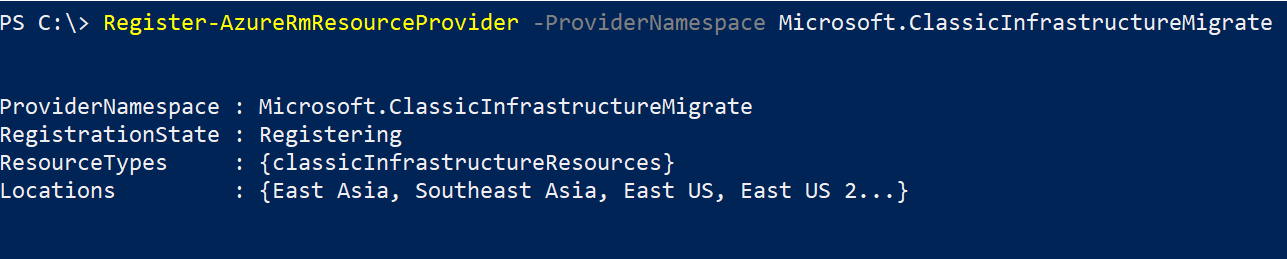
Wait a bit and you'll see that the registration is completed.
Get-AzureRmResourceProvider -ProviderNamespace Microsoft.ClassicInfrastructureMigrate

Now that you are in the right subscription and all the requirements are met, make sure you can get the desired storage account by fetching it:
Get-AzureStorageAccount -StorageAccountName 'Your storage account name' # replace with yours
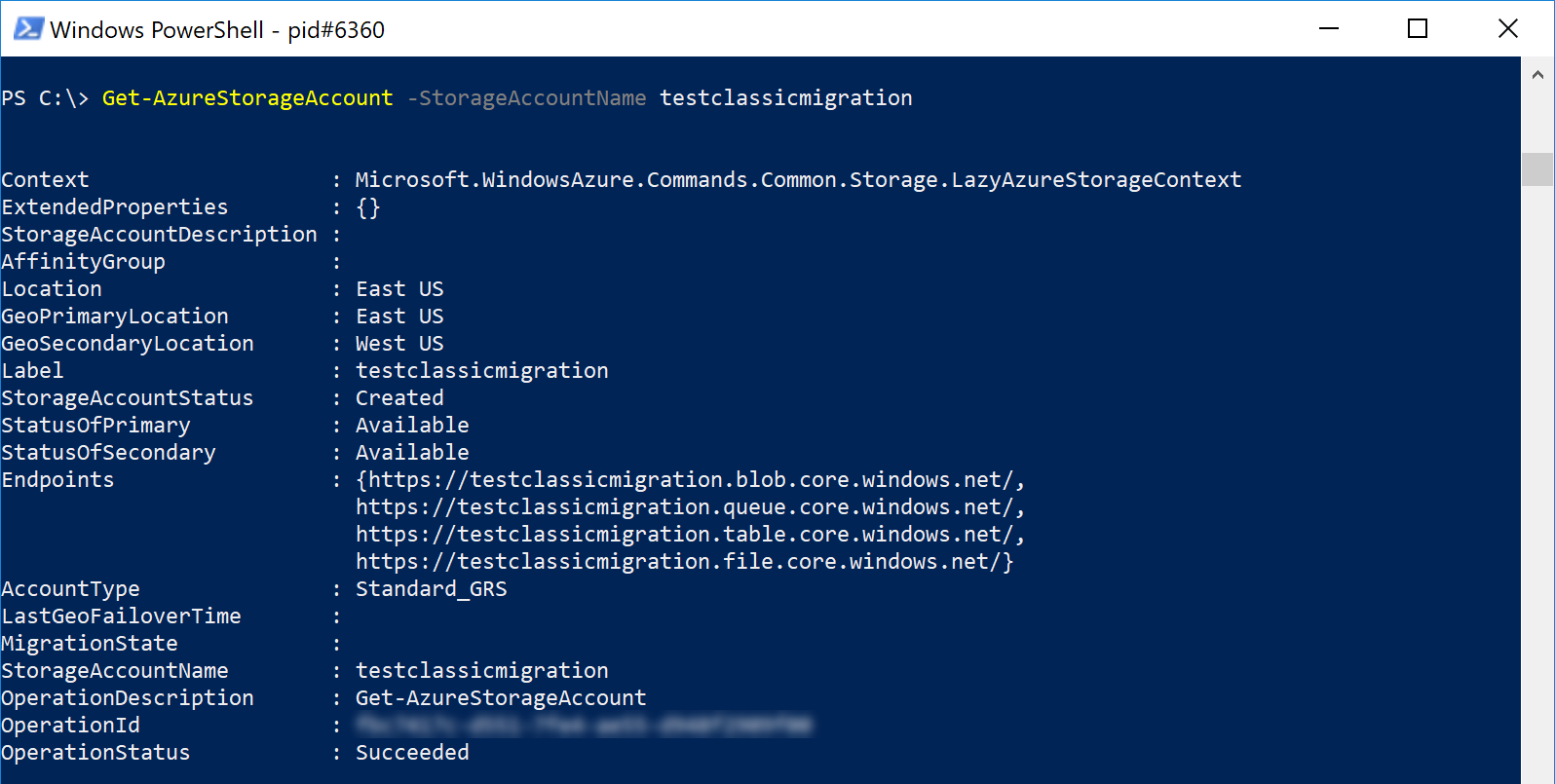
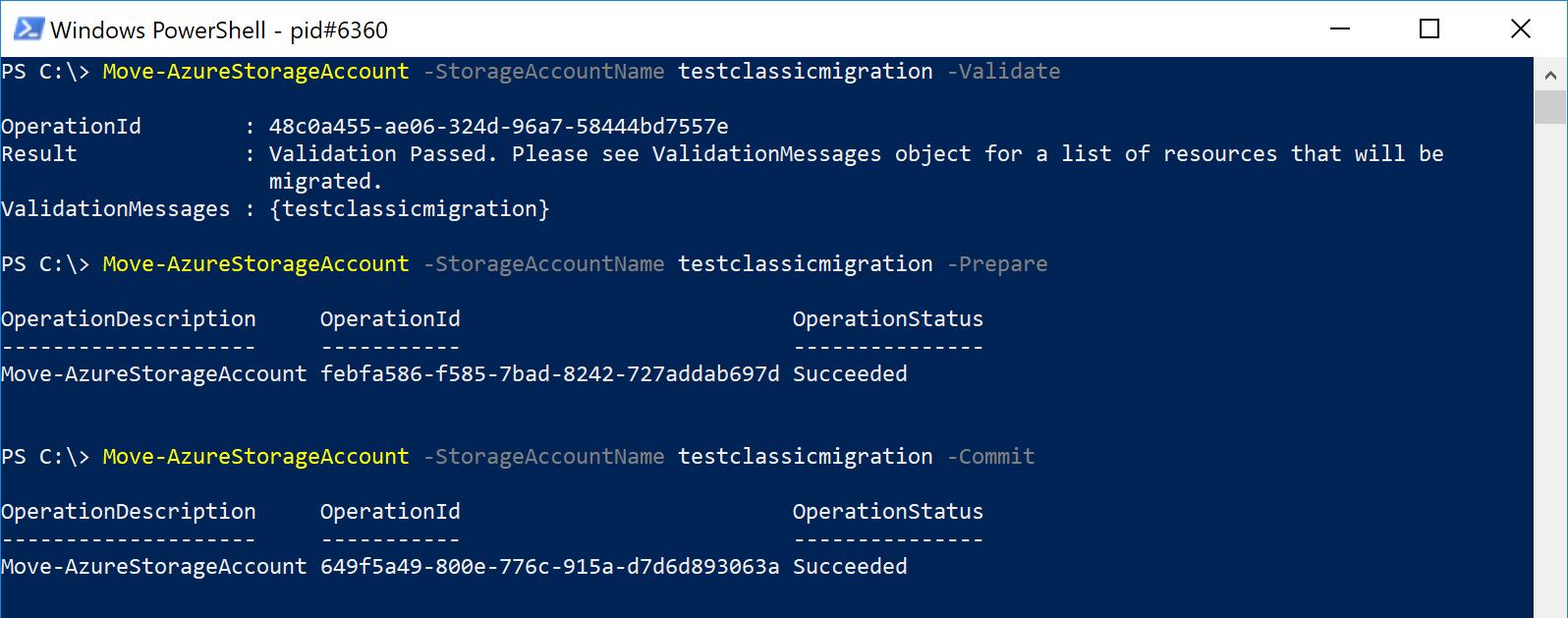
We are all good now, let's migrate this the Classic storage account to Azure Resource Manager in 3 little steps: first validate, then prepare the migration and finally, commit changes.
Move-AzureStorageAccount -Validate -StorageAccountName 'Your storage account name' # replace with yours

Move-AzureStorageAccount -Prepare -StorageAccountName 'Your storage account name' # replace with yours

## IF at any point here you changed your mind, you can revert the migration using the following :
# Move-AzureStorageAccount -Abort -StorageAccountName 'Your storage account name' # replace with yours

Move-AzureStorageAccount -Commit -StorageAccountName 'Your storage account name' # replace with yours
You can confirm that your storage account is now under the resource provider Microsoft.Storage instead of Microsoft.ClassicStorage
Add-AzureRmAccount # enter your credentials
Select-AzureRmSubscription -SubscriptionId 00000000-0000-0000-0000-000000000000 # replace with yours
Find-AzureRmResource -ResourceNameContains 'Your storage account name' # replace with yours
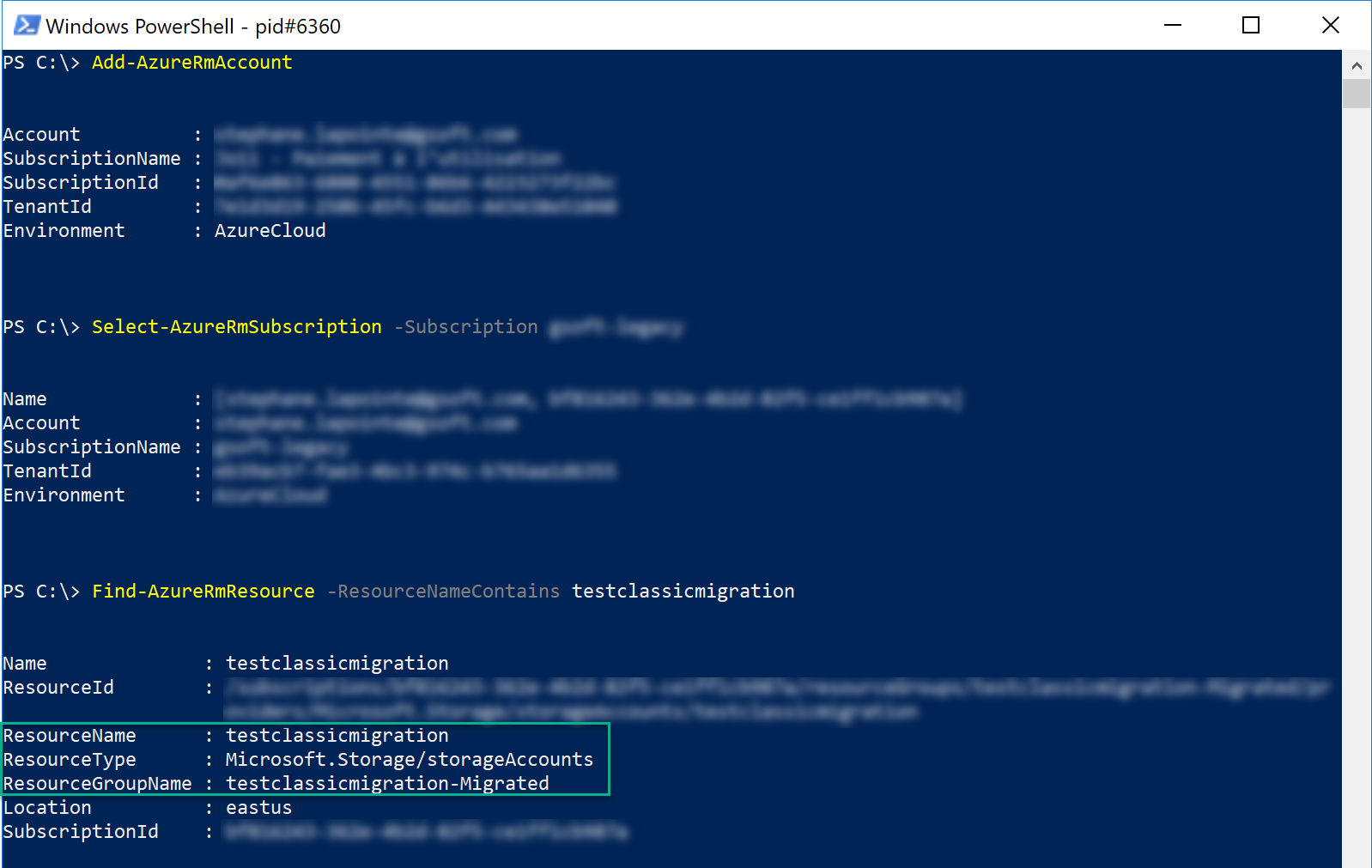
You'll notice that your storage account is under a new resource group, the name of your storage account + '-Migrated'. The good news with ARM resources is that you can move them in a new or existing resource group without a problem, on the contrary of when it was a classic resource.
Have a good one!